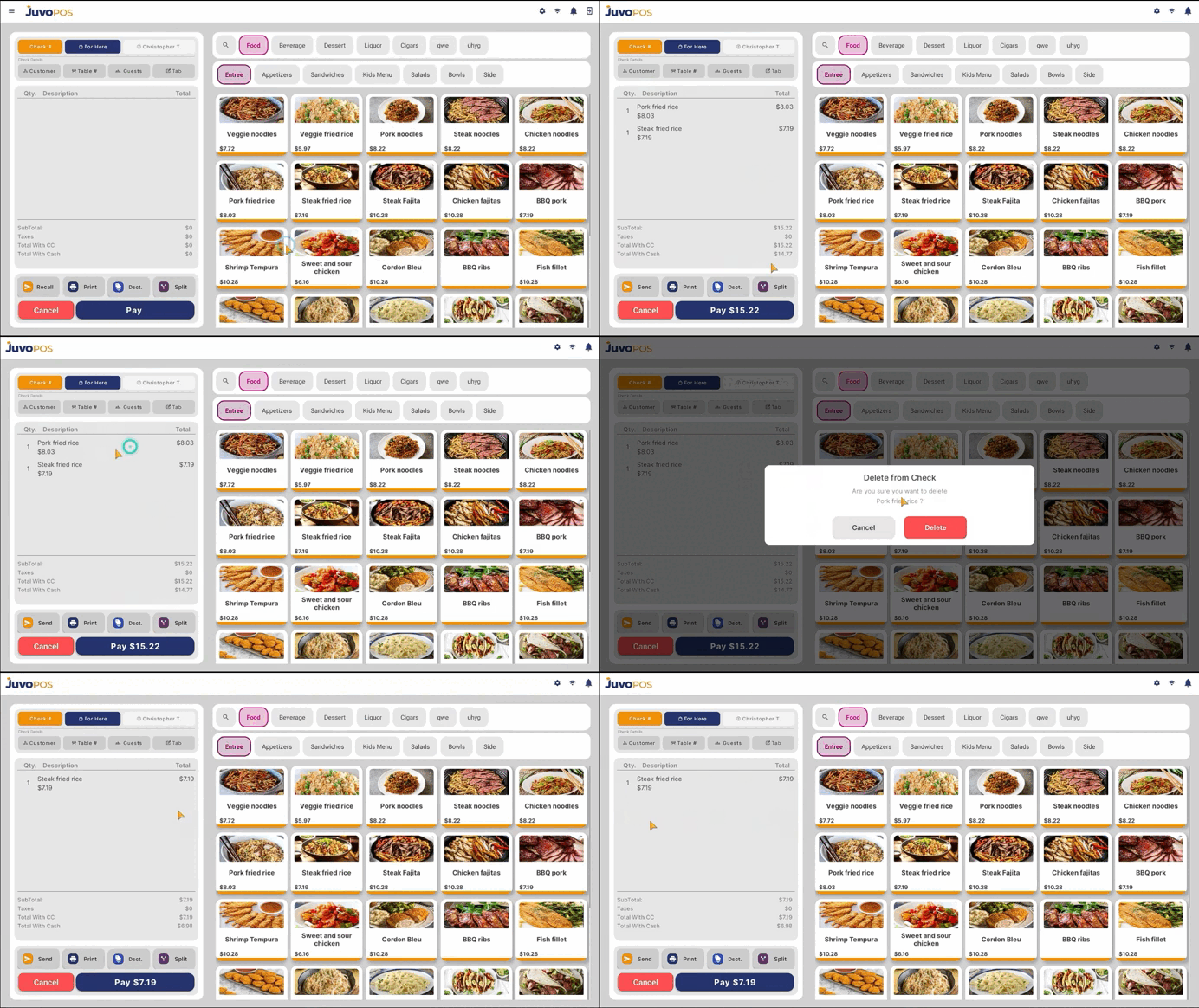
In this guide, we will learn how to remove an item from an open check in Juvo POS.
- Open the check containing the item you want to remove.
- Locate the item and swipe left or right on it.
- A confirmation alert will appear asking, “Do you want to delete item from check?”
- Tap Delete to confirm your action.
- The selected item will be removed from the check.
This feature allows you to quickly remove unwanted items from a check and correct orders when necessary.
Juvo destinations
Need something else?
Access the Juvo Back Office or connect with our sales team.