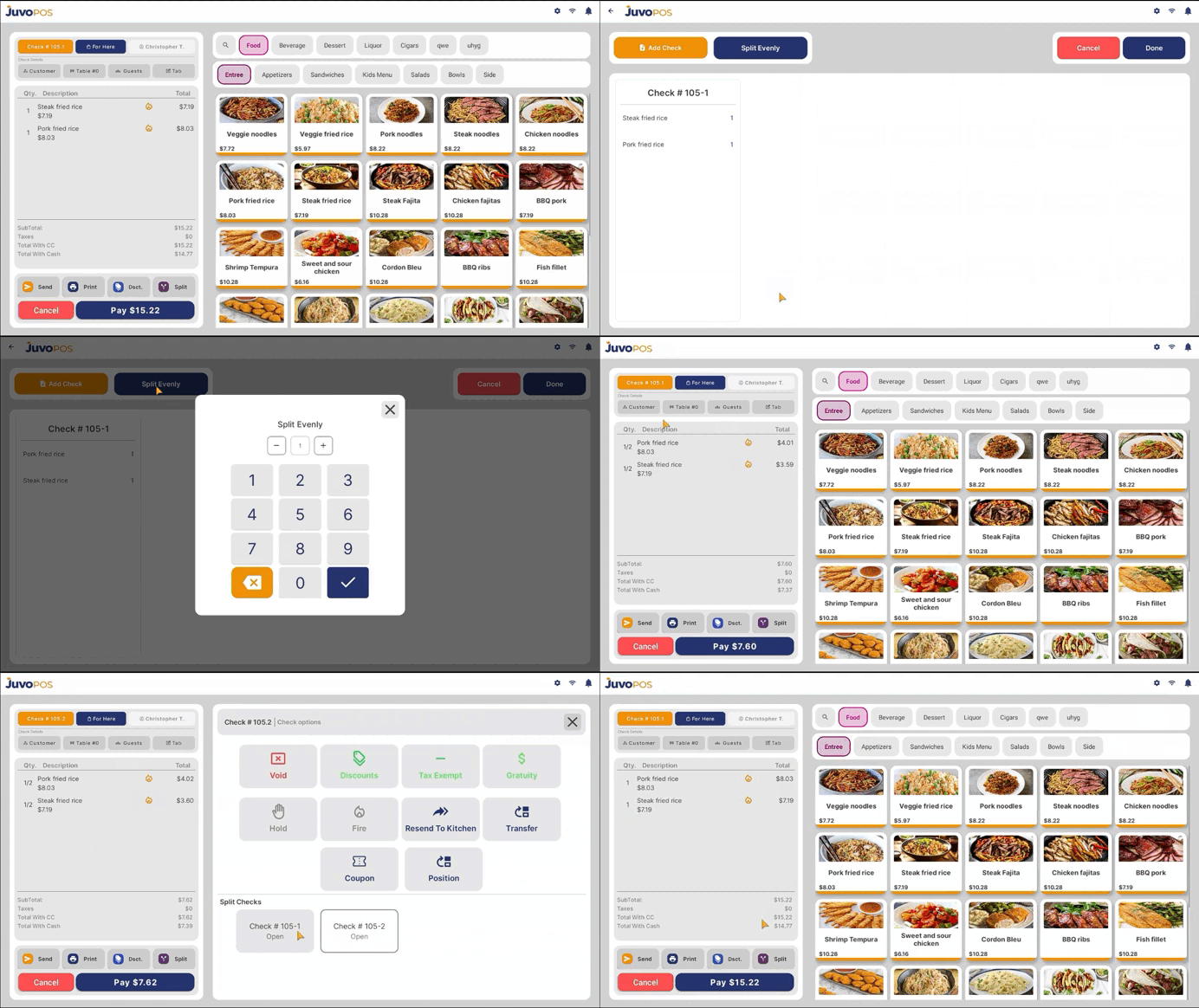
In this guide, we will learn how to split a check into multiple checks, divide items between guests, split a check evenly, and combine previously split checks in Juvo POS.
Part 1: Splitting a Check
- Open the check you want to split and tap the Split button.
- Add another check to create a separate check for the items you want to move.
- Drag and drop the items from the original check into the new check until the items are divided as needed.
Part 2: Splitting a Check Evenly
- If you want to divide the check evenly, select Split Evenly.
- Enter the number of splits you want and confirm your selection. The system will divide the check into the requested number of portions.
Part 3: Accessing Split Checks
- To view all the resulting checks, tap Check.
- You will see the individual split checks listed separately. For example, an original check numbered 105 may appear as 105.1 and 105.2.
Part 4: Combining Checks
- If you need to combine previously split checks, open the check and tap Split.
- Select Combine and follow the available prompts to recombine the checks.
Once completed, the checks will be combined into a single check.
Juvo destinations
Need something else?
Access the Juvo Back Office or connect with our sales team.