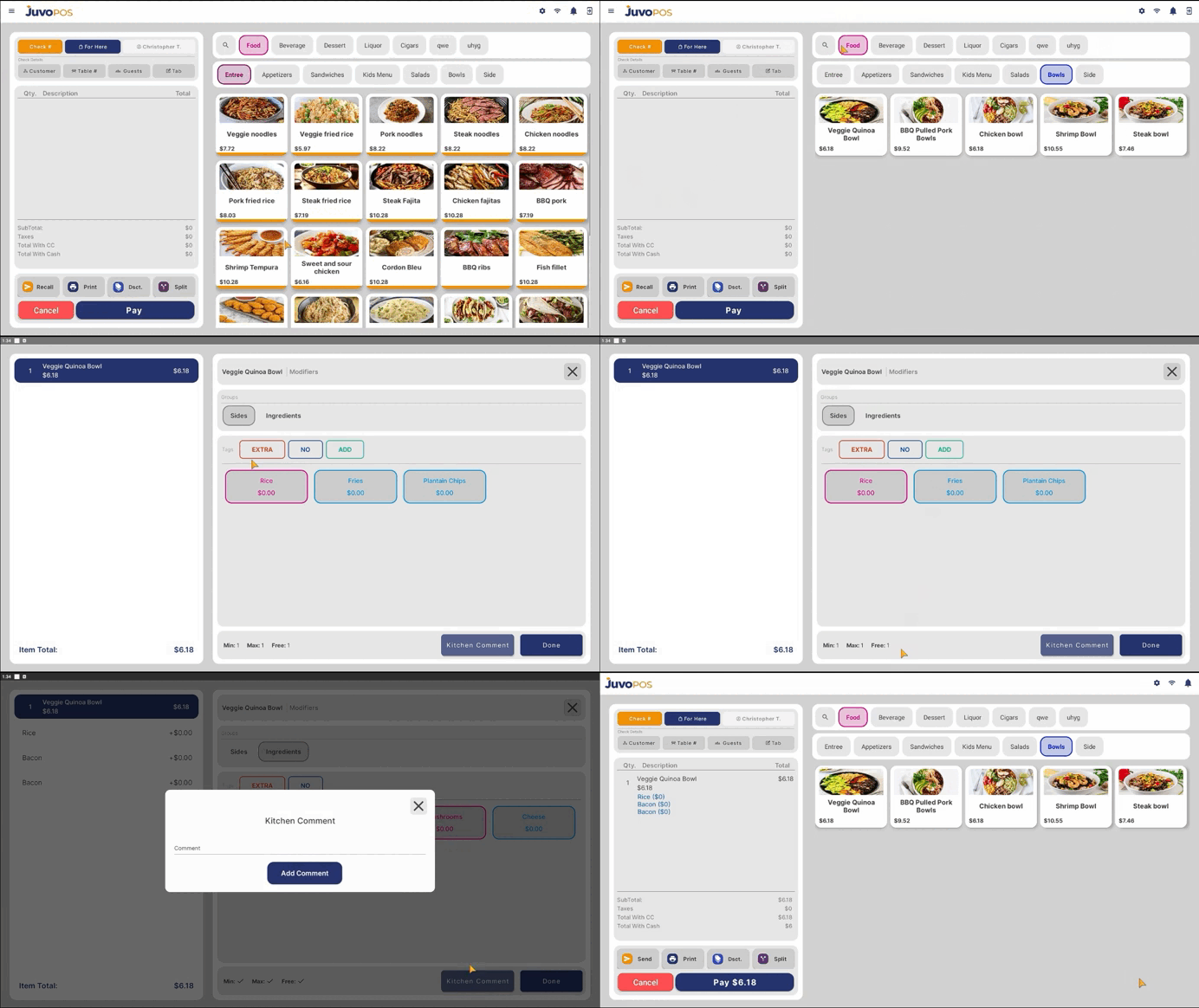
In this guide, we will learn how to add items to an open check in Juvo POS, select modifiers, and include kitchen comments when needed.
- Open a new or existing check to begin adding items to the order.
- Find the item you want to add by using the Search Bar or browsing through the available Categories and Subcategories in your menu.
- Select the desired item to add it to the check.
- If the item has modifiers, carefully review and select the appropriate options before proceeding.
- If necessary, add a Kitchen Comment to provide special instructions or additional information for the kitchen staff.
- Review the selected items, modifiers, and comments to ensure the order is correct.
Adding items in Juvo POS allows you to build orders efficiently while ensuring that special requests and item modifications are communicated correctly to the kitchen.
Juvo destinations
Need something else?
Access the Juvo Back Office or connect with our sales team.