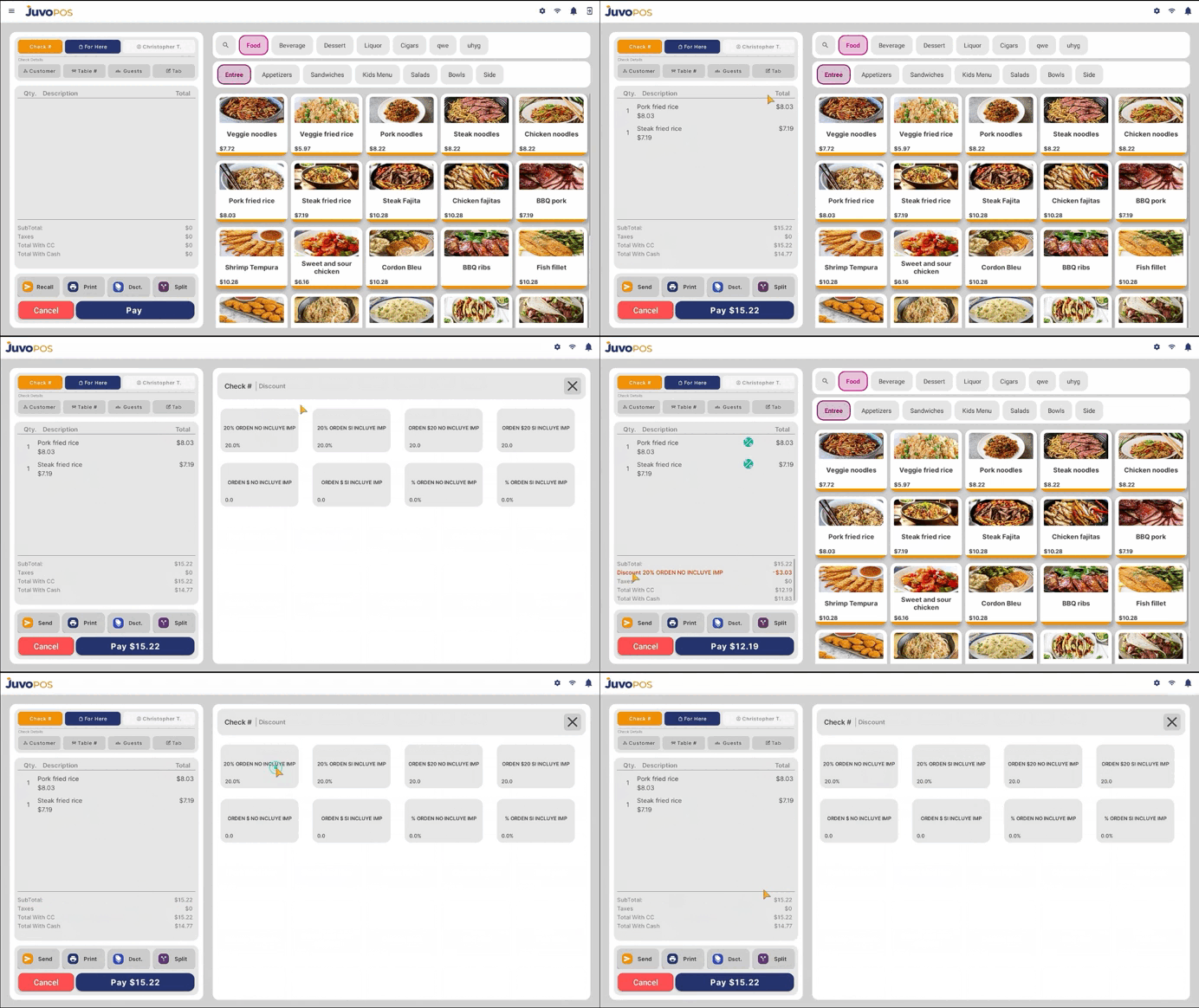
In this guide, we will learn how to apply and remove discounts in Juvo POS, whether for an individual item or an entire check.
- Open the check where you want to apply a discount.
- Select the item you want to discount, or choose the option to apply a discount to the entire check.
- Tap Discount to view the available discount options.
- Choose the type of discount you want to apply, such as:
- Percentage Discount: Apply a percentage off the selected item or check.
- Fixed Amount Discount: Deduct a specific monetary amount.
- Preset Discount: Select a predefined discount available in the system.
- Confirm your selection. The applied discount will appear under the selected item or at the bottom of the check when applied to the entire check.
To Remove a Discount
If you need to remove an existing discount, repeat the same process. Select the item or check where the discount was applied, open Discount, and unselect the previously applied discount. The discount will be removed from the selected item or check.
Juvo destinations
Need something else?
Access the Juvo Back Office or connect with our sales team.