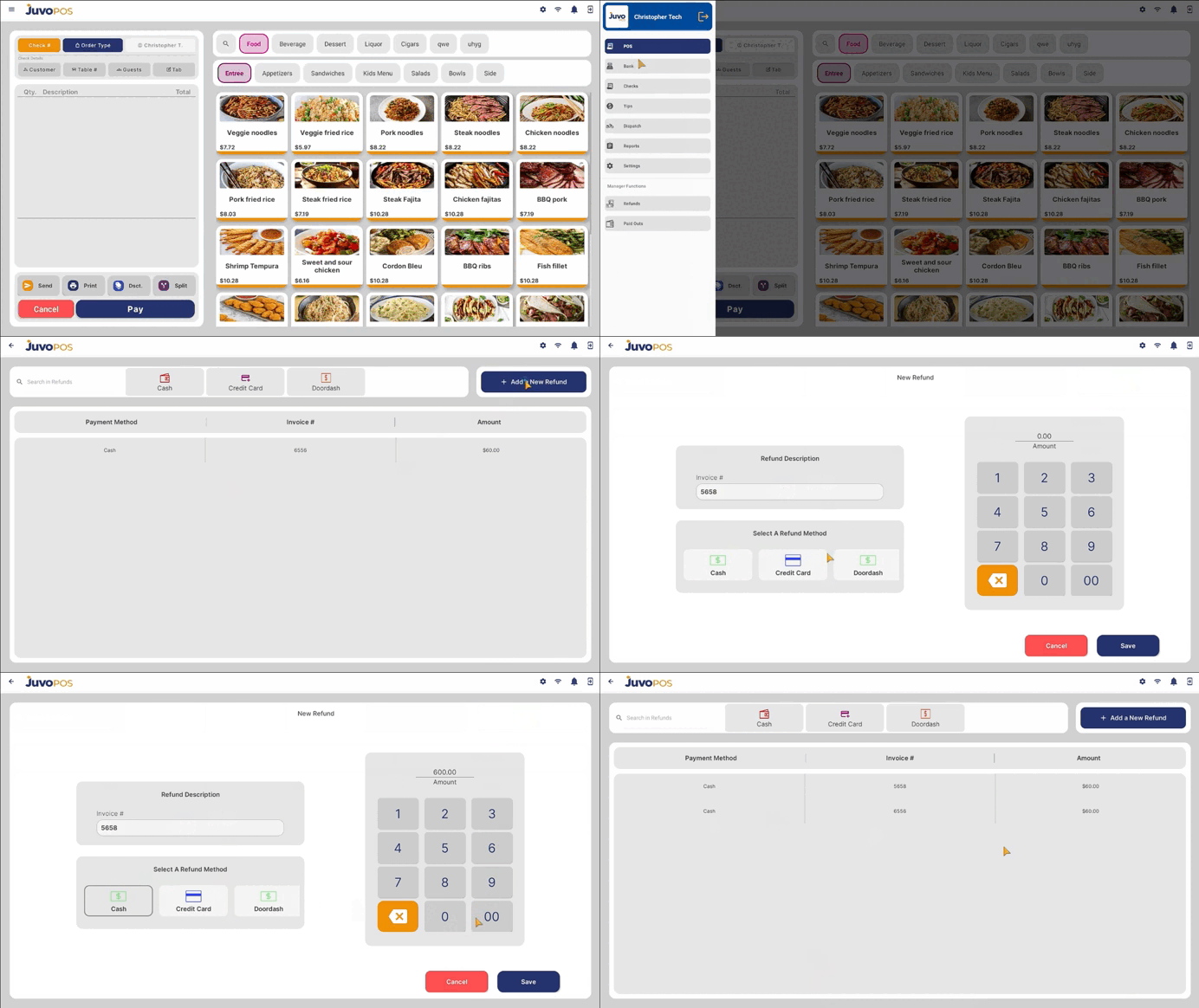
In this guide, we will learn how to record a refund in Juvo POS.
- From the main POS screen, open the Functions menu.
- Select Bank, then choose Refund.
- To record a new refund, enter the Invoice Number associated with the refund.
- Select the appropriate Refund Method.
- Enter the Refund Amount.
- Review the information entered and tap Save to record the refund.
- Once the process is completed, a confirmation message will appear: “Refund saved successfully.”
Recording refunds in Juvo POS allows you to document refund transactions and maintain an accurate record of your business operations.
Juvo destinations
Need something else?
Access the Juvo Back Office or connect with our sales team.