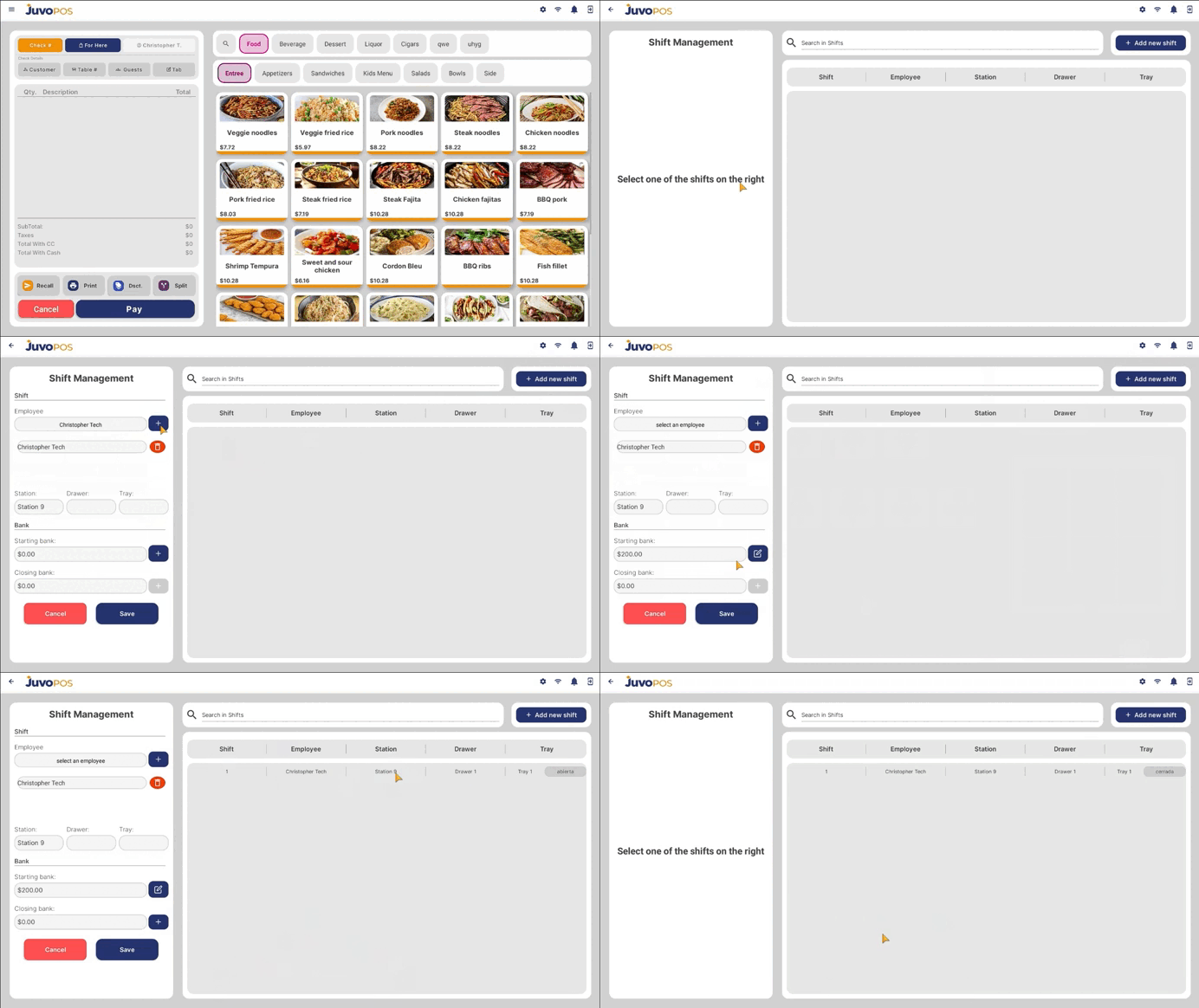
In this guide, we will learn how to create and manage an employee shift in Juvo POS, including recording the starting and closing bank amounts.
- From the main POS screen, open the Functions menu.
- Select Bank, then choose Shift.
- Tap Add Shift to begin creating a new shift.
- Select the employee assigned to the shift.
- Enter the Starting Bank amount, which represents the initial cash amount in the register at the beginning of the shift.
- Tap Update to save the shift information.
- When the employee finishes the shift, return to the shift information and update the Closing Bank amount to record the final cash balance.
Properly recording the starting and closing bank amounts helps track register cash, manage employee shifts, and maintain accurate cash records throughout daily operations.
Juvo destinations
Need something else?
Access the Juvo Back Office or connect with our sales team.