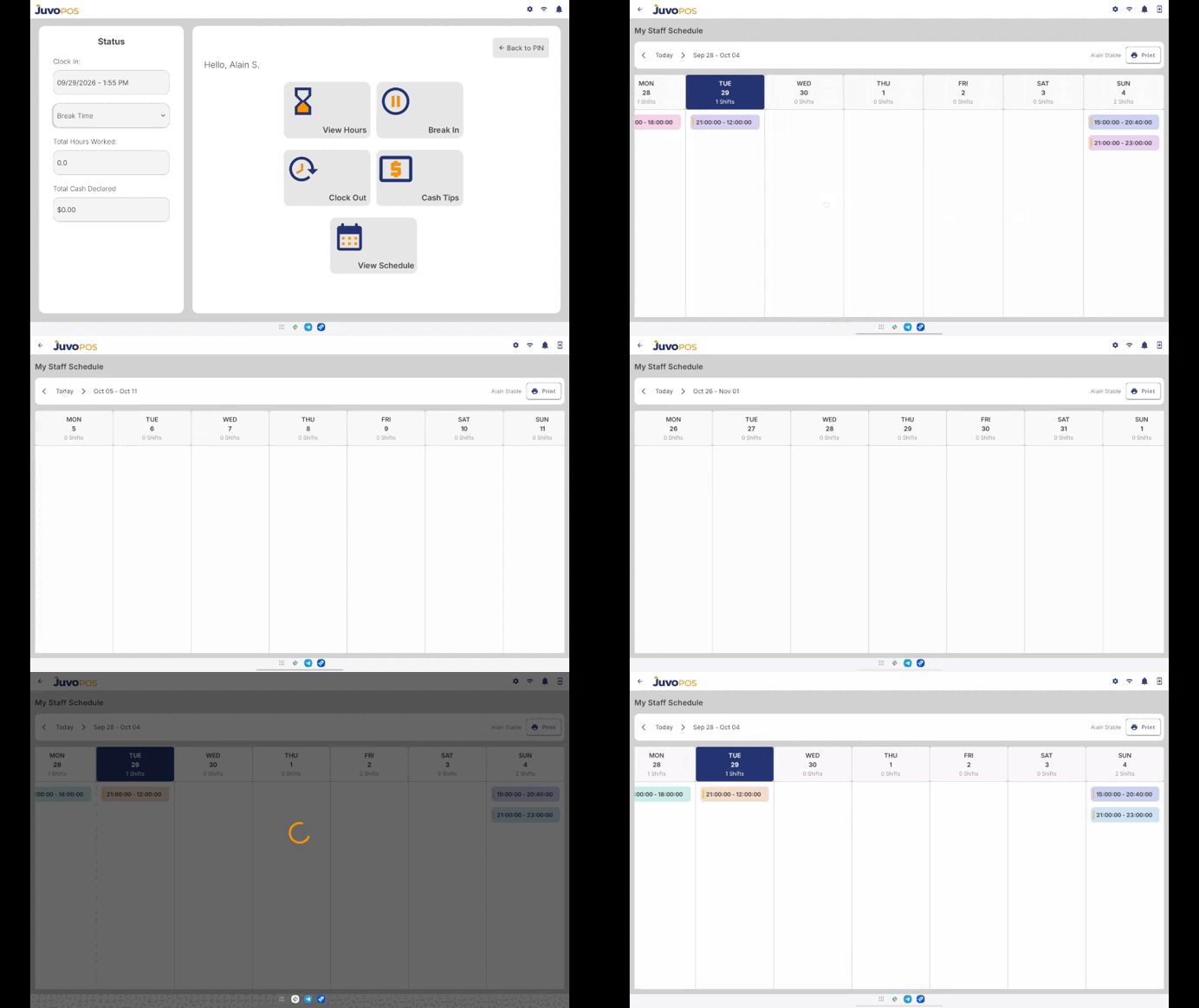
Once the schedule has been created in the BO and synced with the POS, employees can view their schedule directly from the Time Clock.
Step 1: Open Time Clock
- On the POS, select Time Clock.
- Enter your employee PIN to clock in.
Step 2: Select View Schedule
After entering the PIN, the employee will see the View Schedule option. Select View Schedule to access the schedule that was created in the BO.
Step 3: View the Weekly Schedule
Employees can:
- View their scheduled shifts for the week.
- Review their dates and scheduled times.
- Check their upcoming shifts directly from the POS.
Step 4: Print the Schedule
If a physical copy is needed, employees can select the Print option to print their schedule.
Important
The schedule displayed on the POS comes directly from the Staff Schedule created in the BO. If a schedule is added or changed in the BO, make sure the POS is synced so the latest schedule is available to employees.
Juvo destinations
Need something else?
Access the Juvo Back Office or connect with our sales team.