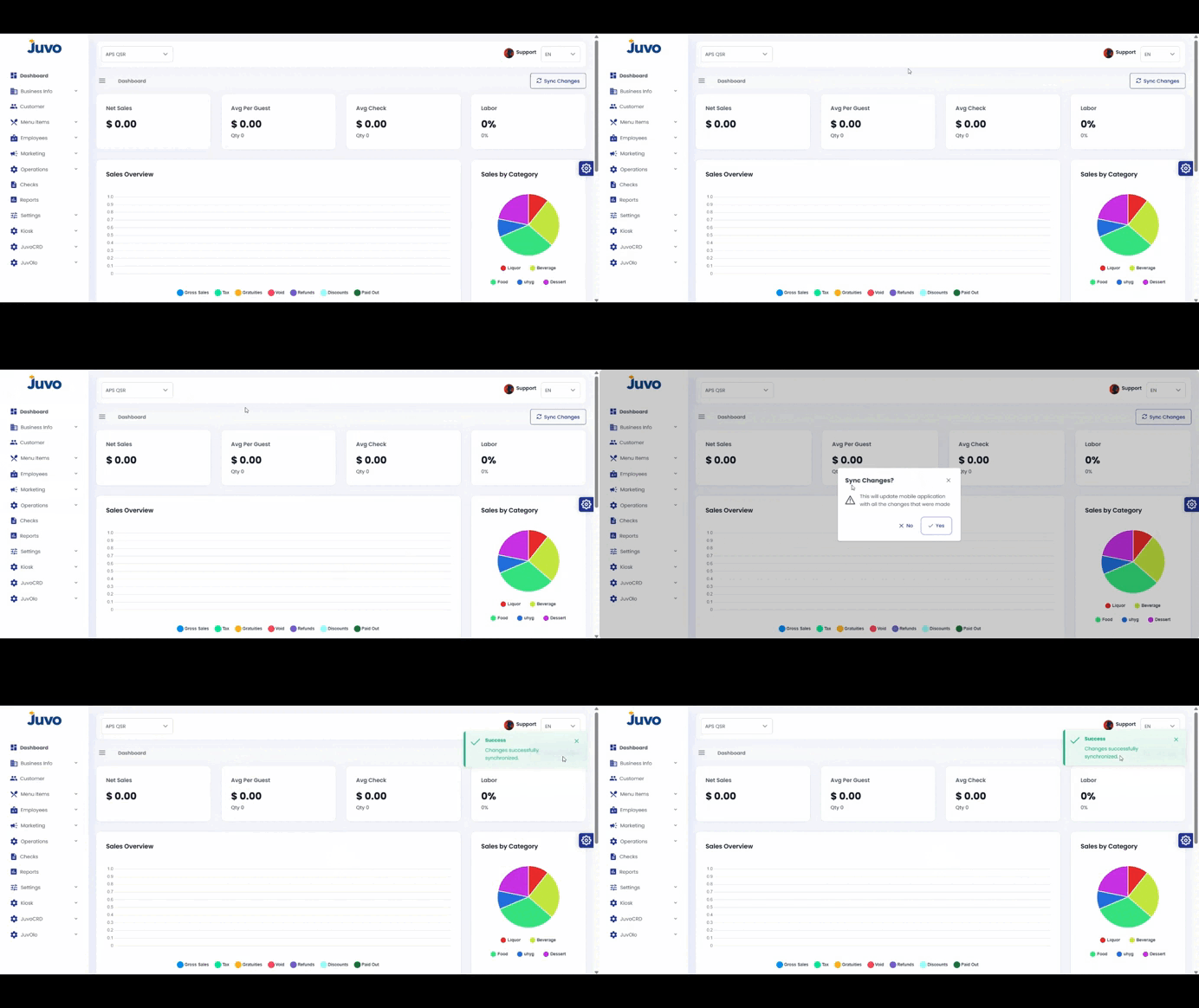
Learn how to send updated Back Office information to the POS.
- Log in to Juvo Back Office.
- Go to the top-right corner near the User section.
- Click Sync Changes.
- Allow synchronization to complete.
Note: Sync after making Back Office updates so the POS receives the latest information.
Juvo destinations
Need something else?
Access the Juvo Back Office or connect with our sales team.