Author: marcoantonio

  • Clock In – Juvo POS

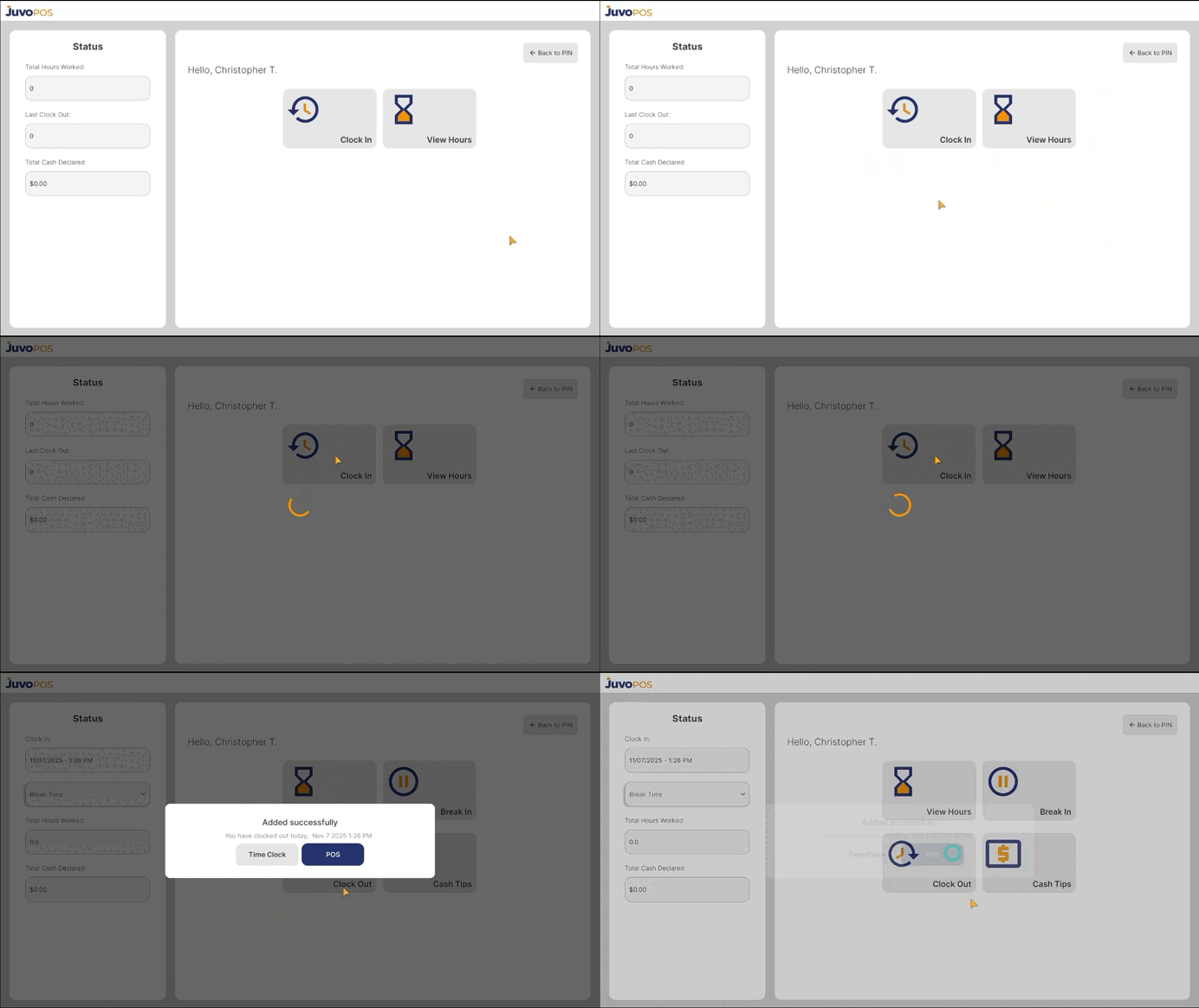
    In this guide, we will learn how to clock in to Juvo POS and start your work shift.

    1. From the main POS screen, enter your employee PIN.
    2. Tap the Check button to access the available employee options.
    3. Select Clock In, View Hours, or View Schedule.
    4. Choose Clock In to register the start of your shift.
    5. Wait a few seconds for the system to process your request. Once completed, you will be successfully clocked in to the POS system.

    Clocking in through Juvo POS allows you to record the beginning of your shift and helps maintain accurate employee timekeeping records.
  • Delete an Item from a Check – Juvo POS

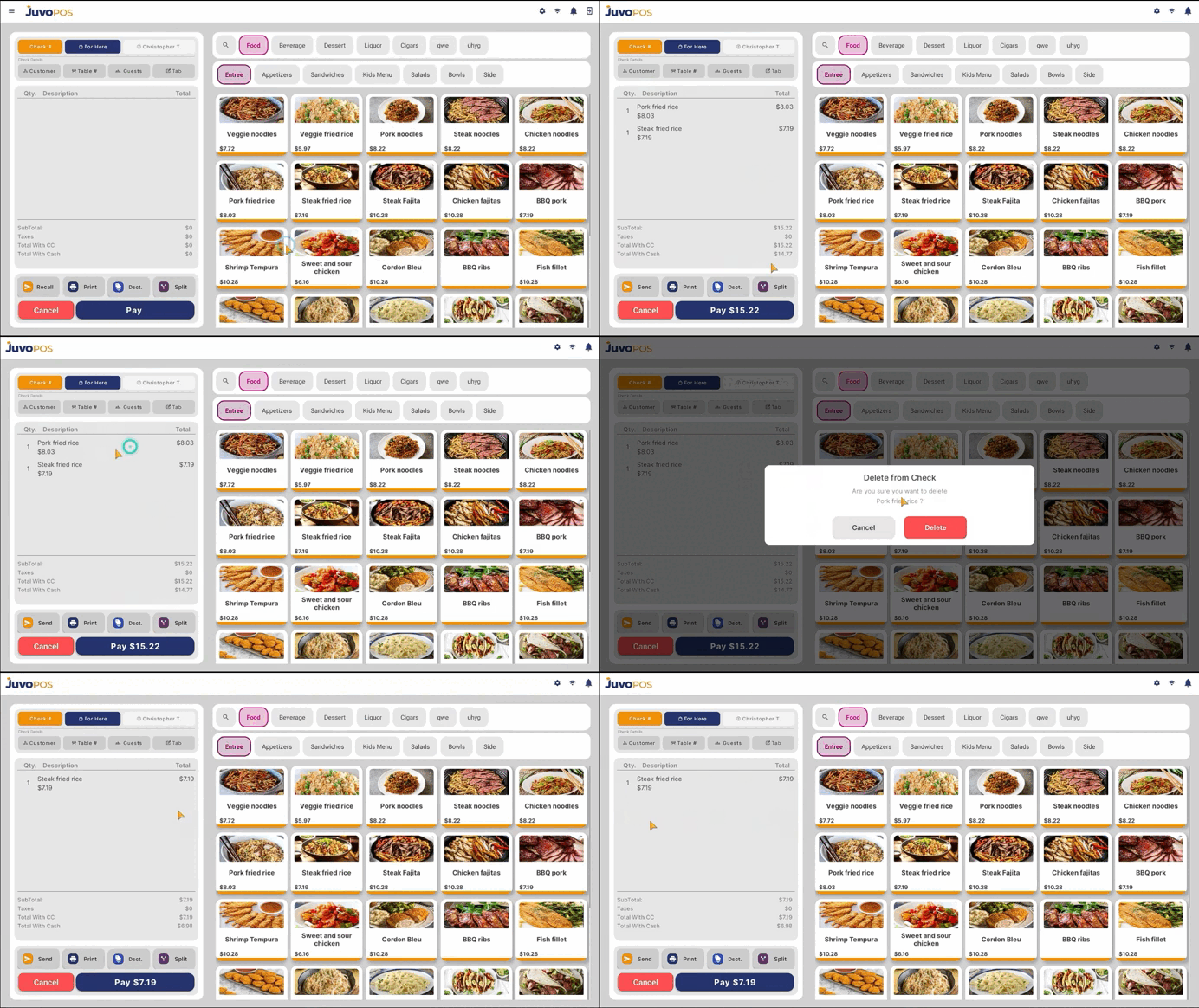
    In this guide, we will learn how to remove an item from an open check in Juvo POS.

    1. Open the check containing the item you want to remove.
    2. Locate the item and swipe left or right on it.
    3. A confirmation alert will appear asking, “Do you want to delete item from check?”
    4. Tap Delete to confirm your action.
    5. The selected item will be removed from the check.

    This feature allows you to quickly remove unwanted items from a check and correct orders when necessary.

  • Split and Combine Checks – Juvo POS

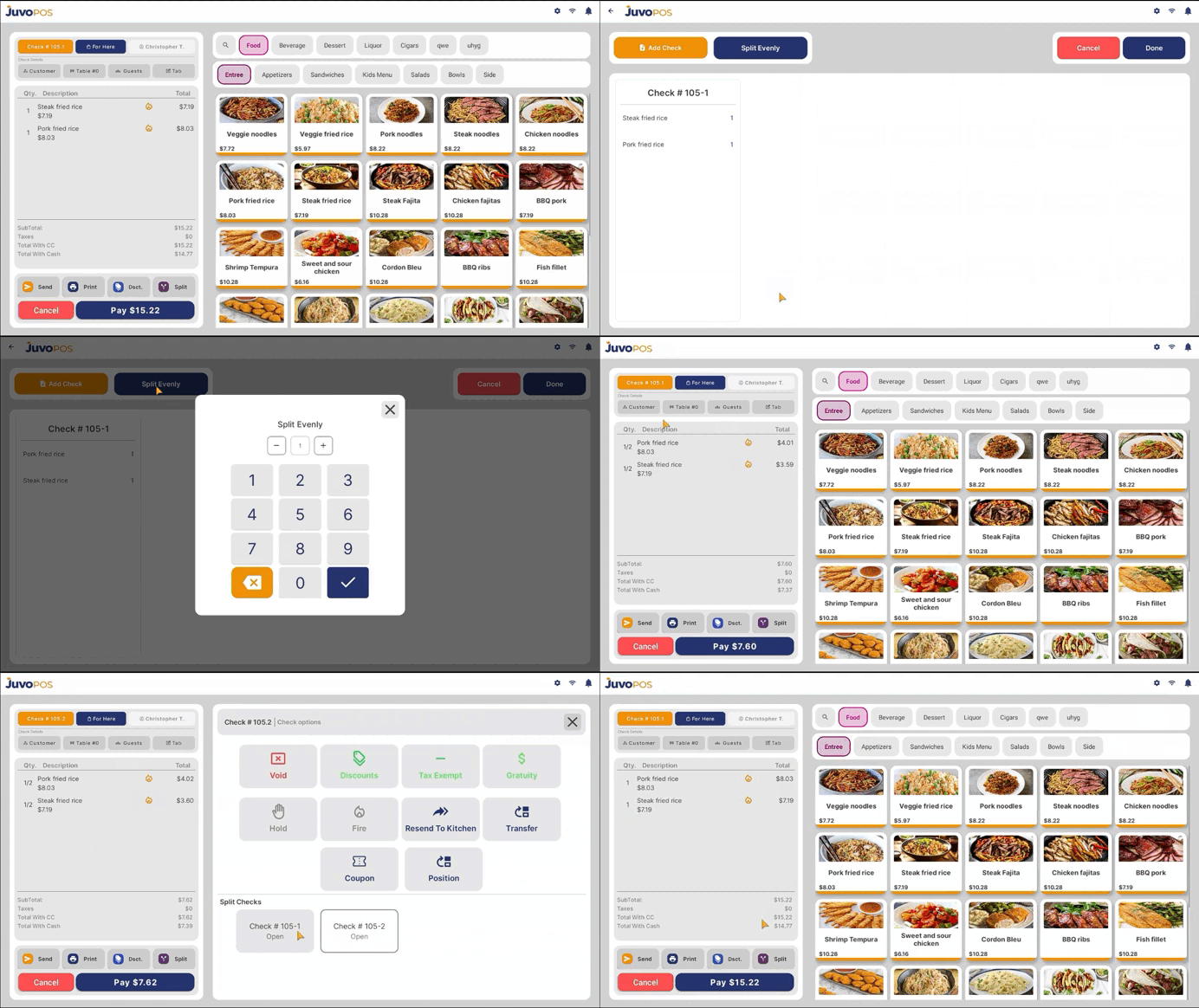
    In this guide, we will learn how to split a check into multiple checks, divide items between guests, split a check evenly, and combine previously split checks in Juvo POS.

    Part 1: Splitting a Check

    1. Open the check you want to split and tap the Split button.
    2. Add another check to create a separate check for the items you want to move.
    3. Drag and drop the items from the original check into the new check until the items are divided as needed.

    Part 2: Splitting a Check Evenly

    1. If you want to divide the check evenly, select Split Evenly.
    2. Enter the number of splits you want and confirm your selection. The system will divide the check into the requested number of portions.

    Part 3: Accessing Split Checks

    1. To view all the resulting checks, tap Check.
    2. You will see the individual split checks listed separately. For example, an original check numbered 105 may appear as 105.1 and 105.2.

    Part 4: Combining Checks

    1. If you need to combine previously split checks, open the check and tap Split.
    2. Select Combine and follow the available prompts to recombine the checks.

    Once completed, the checks will be combined into a single check.

  • Adding Items to a Check – Juvo POS

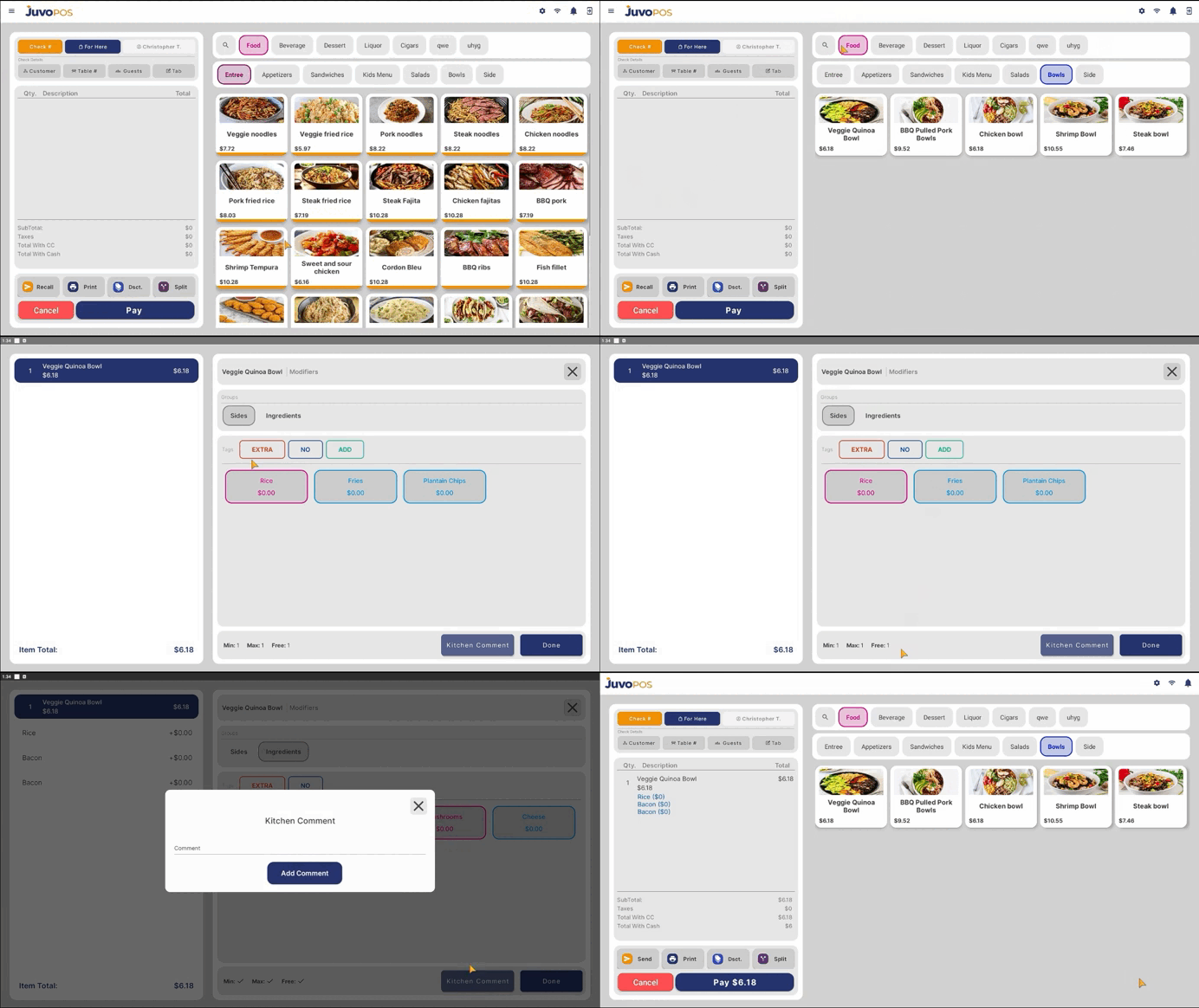
    In this guide, we will learn how to add items to an open check in Juvo POS, select modifiers, and include kitchen comments when needed.

    1. Open a new or existing check to begin adding items to the order.
    2. Find the item you want to add by using the Search Bar or browsing through the available Categories and Subcategories in your menu.
    3. Select the desired item to add it to the check.
    4. If the item has modifiers, carefully review and select the appropriate options before proceeding.
    5. If necessary, add a Kitchen Comment to provide special instructions or additional information for the kitchen staff.
    6. Review the selected items, modifiers, and comments to ensure the order is correct.

    Adding items in Juvo POS allows you to build orders efficiently while ensuring that special requests and item modifications are communicated correctly to the kitchen.