Purpose: Learn how to quickly edit menu items directly from the Juvo POS without accessing the Back Office (BO).
Step 1: Select a Menu Item
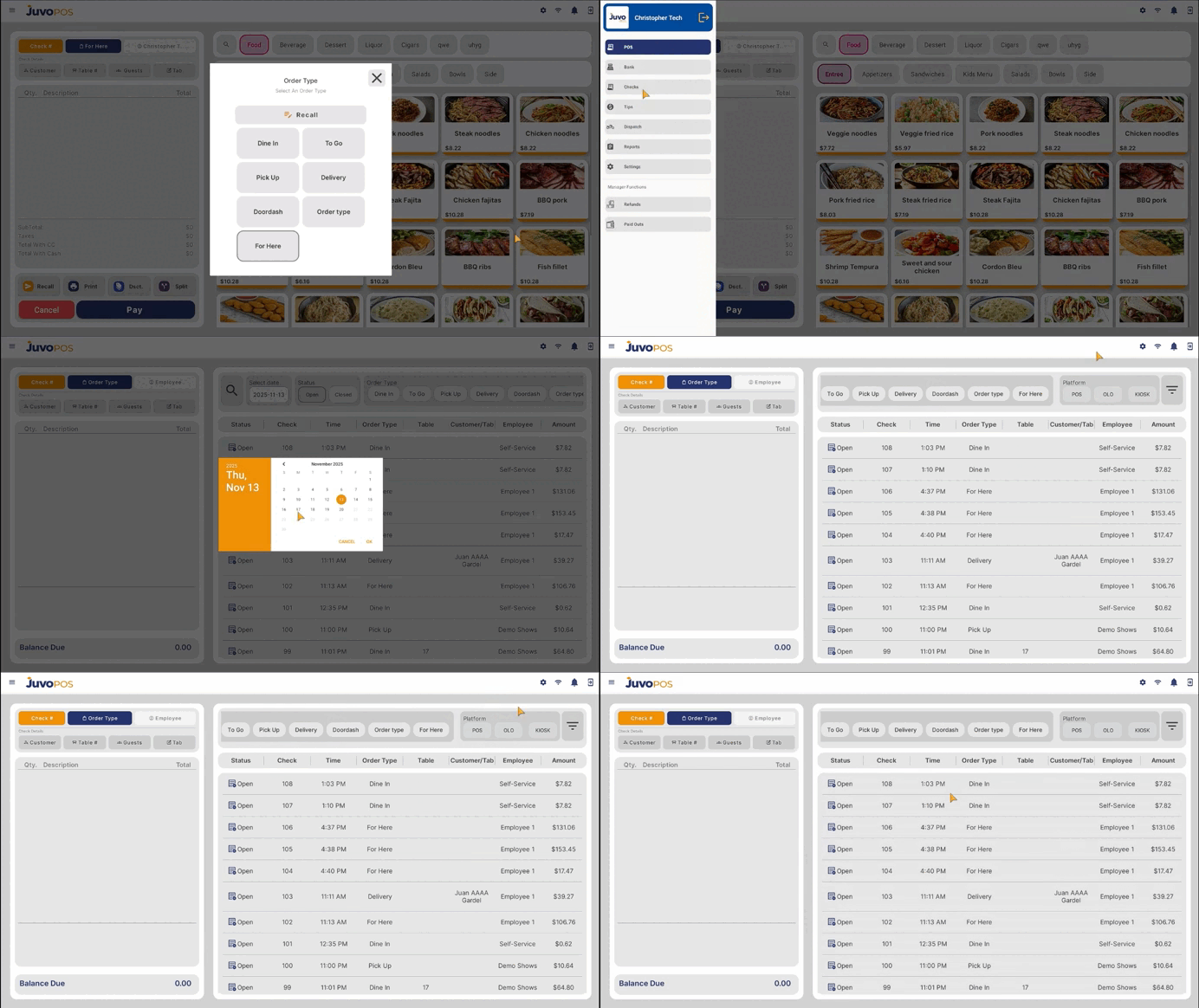
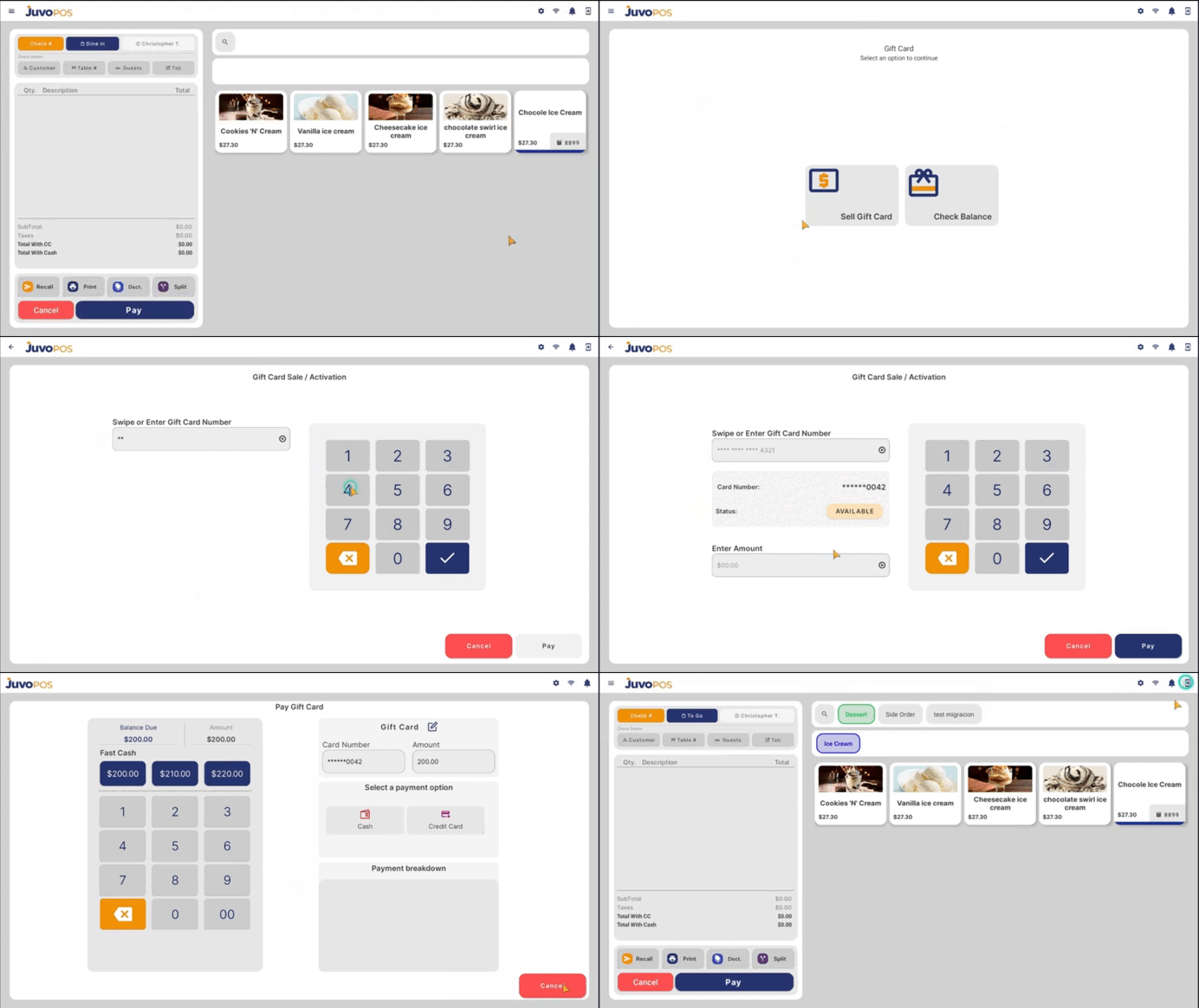
From the main POS menu screen, locate the menu item you want to edit.
Step 2: Press and Hold
Press and hold the selected menu item until a warning message appears on the screen.
Step 3: Confirm Edit Mode
A warning message will inform you that you are about to enter Edit Mode. Review the message and confirm to proceed.
Step 4: Edit Your Menu Items
Once Edit Mode is activated, you can make changes to your menu items directly from the POS.
Step 5: Complete Your Changes
Make the necessary adjustments to your menu items and follow the on-screen options to complete your edits.
Note: Use this feature carefully to ensure that any changes made to the menu are intentional and accurate.